Connecting Phone and Fax to a Server
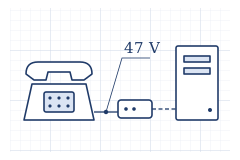
We tried connecting the phone and fax machine in our small office to an Ubuntu server running on an ordinary PC. It is just a combination of small, off-the-shelf devices and a classic fax software package, but once we actually tried it, quite a few things only became clear after hooking everything up.
Our biggest lesson was that rebooting the server left the phone busy for an entire day. We have gathered what we learned here, hoping it might help anyone who wants to try doing the same thing.
A quick safety request regarding phone lines first. Telephone lines carry tens of volts of electricity even while nobody is using them (the value measured on this page was about 46–47 V). During ringing, even higher AC voltage is applied (estimated). Please keep any reconnecting strictly to plugging and unplugging modular jacks, and do not touch the metal contacts inside the wiring. Work such as in-wall wiring requires certification (an installation technician qualification in Japan). For equipment connected to the line, please use devices that carry marks certifying compliance with technical standards (such as the Giteki mark in Japan).
What We Wanted to Achieve
- When an incoming call arrives, automatically log who called and when.
- Receive and send faxes through the server instead of on paper. Received faxes can be read as PDFs, and faxes can be sent from a PC.
- When you click "Call" on a PC screen, make the office telephone dial out to the recipient.
What We Used
All of them are commercially available products costing from a few thousand yen to around the 10,000-yen range (prices are estimated).
- Line: Fiber-optic telephone service (Hikari Denwa). The fiber-optic terminal equipment (home gateway) has two phone ports (TEL1, TEL2), each assigned a separate number.
- Caller ID adapter: A small box that passes the caller's phone number to the PC. It connects to the server via USB and sits inline along the TEL1 line.
- Two USB analog modems: They contain a Conexant CX93001 chip inside. We connected one to TEL2 for faxing, and put the other in parallel on the TEL1 line for "dialing calls."
- Telephone: A single cordless base unit connected to TEL1.
- Fax software: HylaFAX (a classic fax server that runs on Linux). We built the incoming call logging and the screen for making calls using our own small custom tools.
How Everything Is Connected
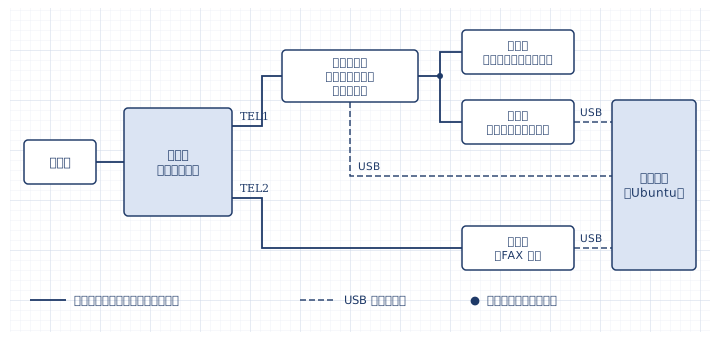
Solid lines are telephone lines, and dashed lines are USB cables. On the TEL1 line, the telephone and the "dialing" modem are connected in parallel.
What We Learned
To show the number, you need a line subscription
When we first connected the caller ID adapter, nothing showed up at all. Looking closely, the office telephone itself had never displayed caller numbers either. When we checked, our line did not have a subscription for the Caller ID service (Number Display). Once we added the subscription, we were able to read the incoming caller's number.
- Without the incoming number notification, this adapter does not even notice the incoming call itself. If nothing happens after connecting it, first check your line subscription.
- We also tried to see if the fax modem could read caller numbers, but with this modem, it only detected ringing (RING) and could not receive the number. It does have the command to read numbers (AT+VCID), so it might be able to read them depending on the model and settings (unverified).
Having two identical modems makes them harder to tell apart
Both modems are the same model, and even their serial numbers were identical. Linux assigns names (ttyACM0, ttyACM1) in the order it discovers devices, so there is a risk they could swap places on every reboot. Therefore, we wrote rules (udev rules) to distinguish them by the USB port they are plugged into, ensuring the fax modem and dialing modem always get the exact same names.
- The trade-off is that switching USB ports will cause them to be mistaken for one another. Labeling the ports gives peace of mind.
- We configured ModemManager (the component built into Ubuntu that looks for cellular modems) not to touch these modems. This is to prevent it from sending unwanted commands while a fax is being received.
When calling from a PC, pick up the handset first
We set things up so the modem dials the number, and you talk on the telephone. At first, we tried the order "modem dials the number → pick up the handset once ringing starts," but the call disconnected the moment the modem released the line. While the modem is holding the line, it seems a telephone picked up afterward cannot seize it.
So, we reversed the order.
- First, pick up the handset on the telephone.
- Click "Call" on the PC. The modem dials the number.
- Once dialing finishes, the modem immediately releases the line. From there, you can talk normally on the telephone.
We also learned the following:
- On the analog port of the fiber-optic phone adapter, the modem sometimes failed to recognize the dial tone. We configured it to dial without waiting for a dial tone (ATX3).
- Adding "#" to the end of the number caused dialing to start immediately without waiting for further digits, connecting faster.
- When speaking on a cordless handset, we pressed the "Talk" button on the handset before placing the call on the PC.
Line voltage tells you the state of the line
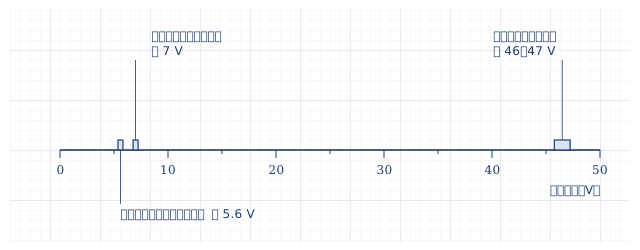
This modem has a command to read the telephone line voltage (AT-TRV). Being able to read it without seizing the line was very handy. Here are the values we measured on our office line.
| Line state | Voltage |
|---|---|
| Nobody using it (handset on the hook) | Approx. 46–47 V |
| Handset is off the hook | Approx. 7 V |
| Modem keeps holding the line (more on this below) | Approx. 5.6 V |
Using this, we set it up so that "if the handset isn't off the hook, don't dial the number." This is to follow the order mentioned above, where the handset must be picked up first.
After a reboot, the phone was busy for a whole day
This was our biggest takeaway.
- What happened: After rebooting the server, our office phone was out of service for about a day. Callers heard a busy signal, and when we picked up the office phone, there was no dial tone.
- How we noticed: We only realized it when someone told us, "Your phone is busy."
- How we investigated: Reading the line voltage gave 5.6 V, meaning something was still holding the line. Placing all handsets back on the hook and power-cycling the adapter changed nothing. When we sent the "hang up" command (ATH0) to the outbound dialing modem, it returned to 47 V, and the phone started working again.
- The cause: During the reboot, the outbound dialing modem ended up holding the line. We couldn't tell from the logs what caused it to do that (unverified).
- The clue we missed: Right after the reboot, warnings kept appearing saying "not receiving any data" from the Caller ID adapter. We assumed the adapter was broken, but in reality, the line was held up, so not a single call was coming through. If we had caught this warning, we would have found out a day sooner.
So, we fixed it as follows:
- Every time the dialing tool starts up, it sends the "hang up" command to the modem. After a reboot, it now always starts in a state where it is disconnected from the line.
- It reads the line voltage every 5 minutes. If it's low, it first sends the "hang up" command and reads the voltage again. If the voltage recovers, it means the modem had been holding the line, so it alerts our smartphone. If it doesn't recover, another phone is in use, so it only alerts us if that lasts longer than 60 minutes (such as a forgotten off-hook handset).
- The "hang up" command only disconnects that specific modem, so it doesn't cut off calls on other phones. There is no problem sending it every 5 minutes.
The fax modem also answers incoming phone calls
To check if the fax line was working, we tried calling the fax number from a mobile phone. The modem answered with a high-pitched beep, waited about 40 seconds (measured at 43 seconds) for a fax tone from the other end, then hung up on its own and returned to standby.
- You can check the fax line simply by calling the fax number from a mobile phone.
- Since the fax software is constantly using the fax modem, we can't read the voltage. Instead, we have it check the fax software's status (idle, receiving) every 5 minutes, and if it doesn't return to "idle" for more than 15 minutes, it sends an alert to our smartphone.
Summary
- When you connect phones or faxes to a server, a server reboot can sometimes cause a telephone outage. After rebooting, make sure to check if calls go through. If possible, having automated monitoring gives peace of mind.
- The modem's command to read the line voltage is extremely handy for checking the line status.
- A warning that "nothing is being sent" might not be a broken device, but a sign of an issue further upstream.
QR code for this page
https://robo100.jp/en/000031
No comments yet.